BENH Reports
Buy Extra Nursery Hours (BENH)
Reports in Admit
The Reports feature in the Admit platform gives administrators a powerful set of tools to monitor, manage and analyse extra nursery bookings and payments.
Overview of Extra Hours Bookings
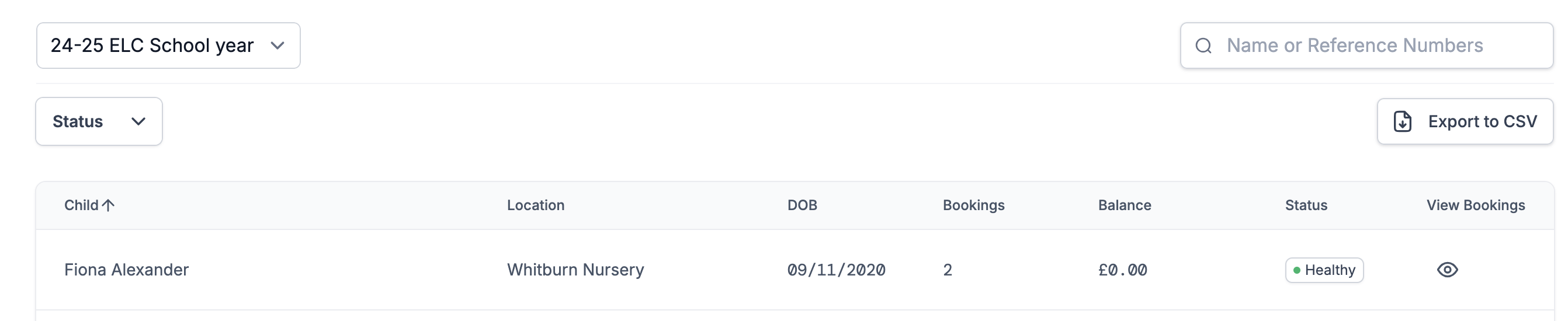
You can access an overview of all bookings by navigating to the Extra Hours Bookings section in the main sidebar. This section provides:
- A list of all children who have had any bookings within the selected school year.
- A visual indication of the payment ‘health’ for each child’s account — making it easy to spot unpaid or overdue balances.
Clicking on a child will open a detailed view of their booking record.
Booking Detail View
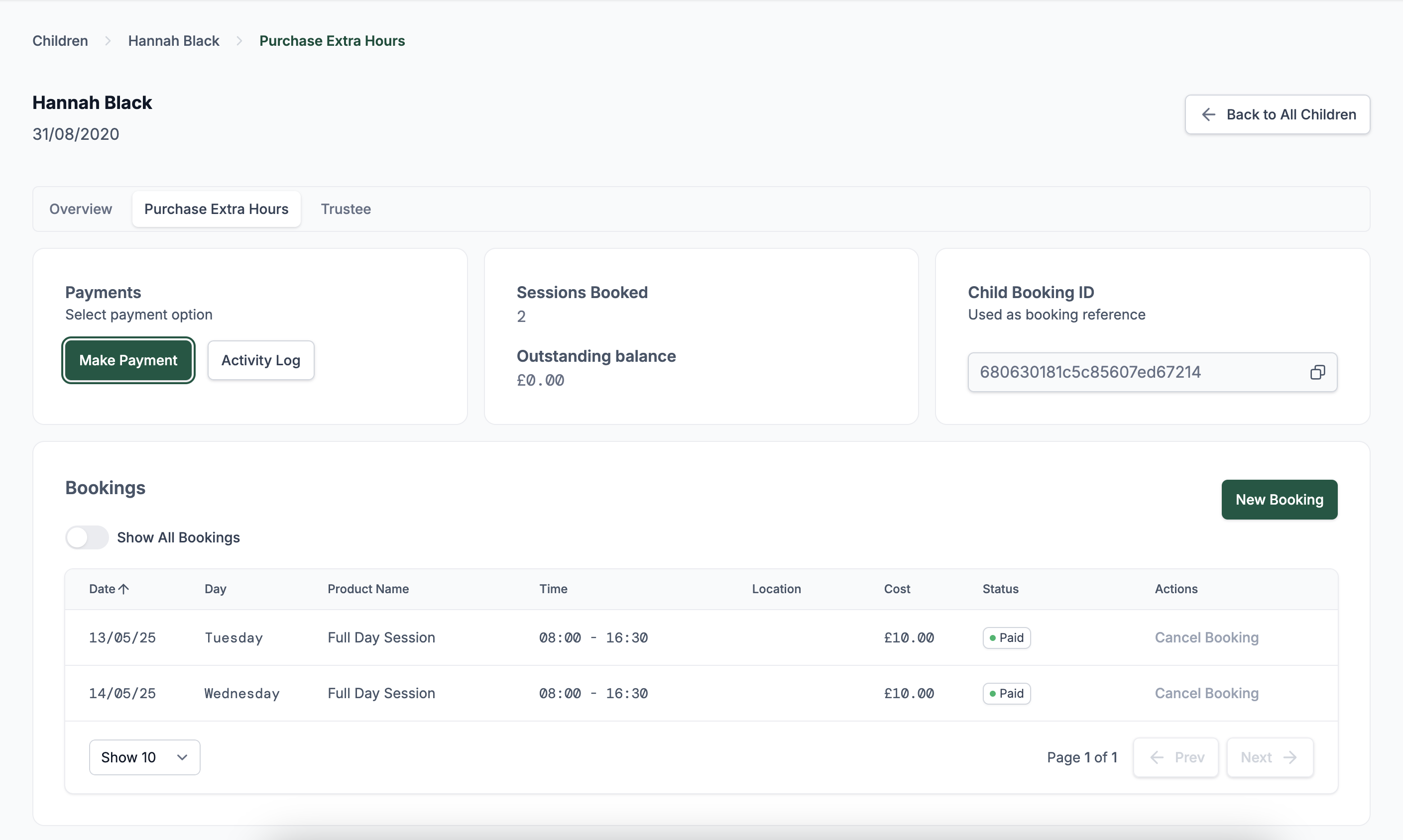
Within the detailed view for each child, you have access to a range of administrative controls:
- Enable or disable bookings – Useful when families fall behind on payments and you need to restrict access.
- Enable or disable payment methods – Choose which payment methods are available for that specific account.
- Cancel existing bookings – Remove scheduled bookings if needed.
- View activity log – See a complete history of all actions related to the account.
- Record a payment – Manually log transactions and make financial adjustments.
Recording Payments
The Record Payment feature provides several important options:
-
Log a payment:
- ePay Capita transactions will appear automatically.
- Tax-Free Childcare and Childcare Voucher payments must be entered manually.
- If automation fails for ePay Capita, you can also record those manually.
-
Create a refund:
- This action serves as a log only — it does not trigger the actual transfer of funds.
- It records that funds were returned to the original payer.
-
Add a credit to an account:
- This also serves as a log and does not involve any physical transfer of funds.
- Credits are typically used to offset future bookings or charges.
Activity Log
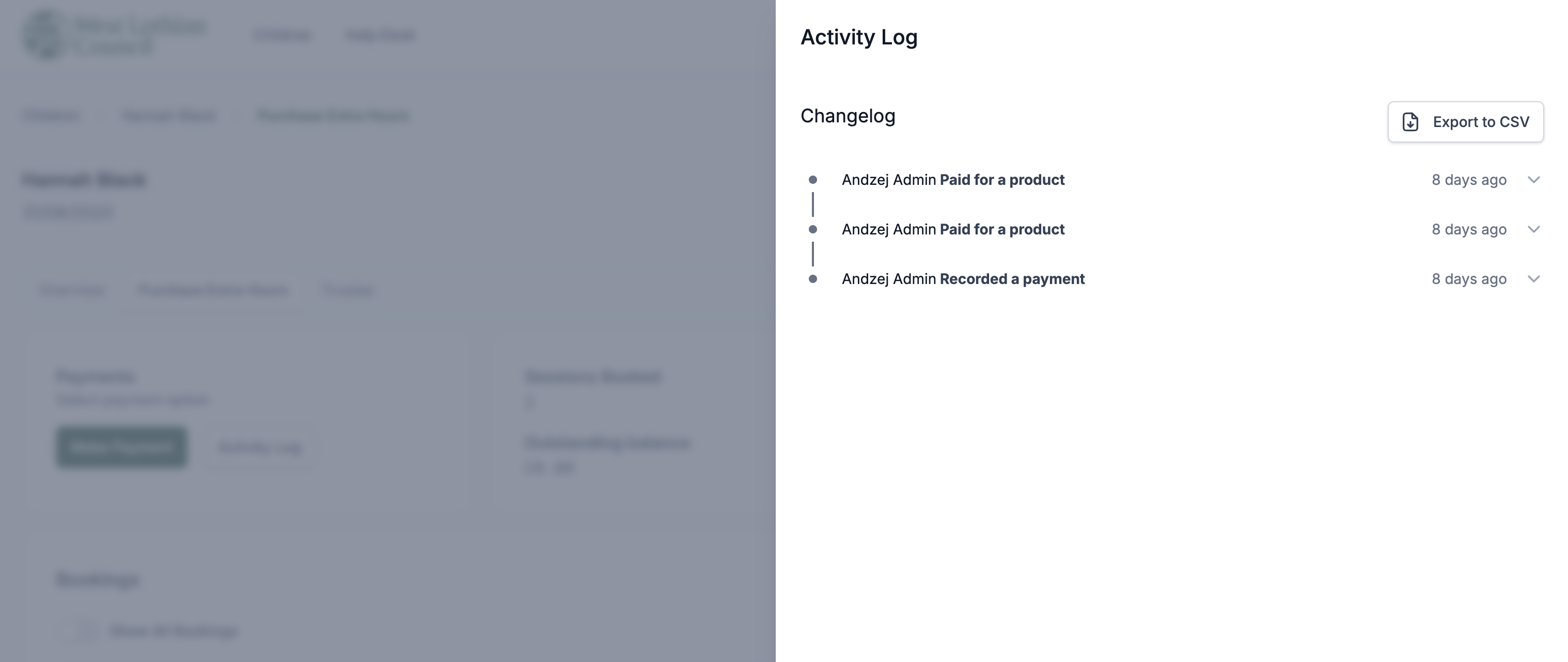
All actions taken on the account — such as bookings, cancellations, payments, and changes to account settings — are recorded in the Activity Log.
- Access this by clicking the Activity Log button on the child’s booking screen.
- Both parents/carers and staff can view the full booking history from this section.
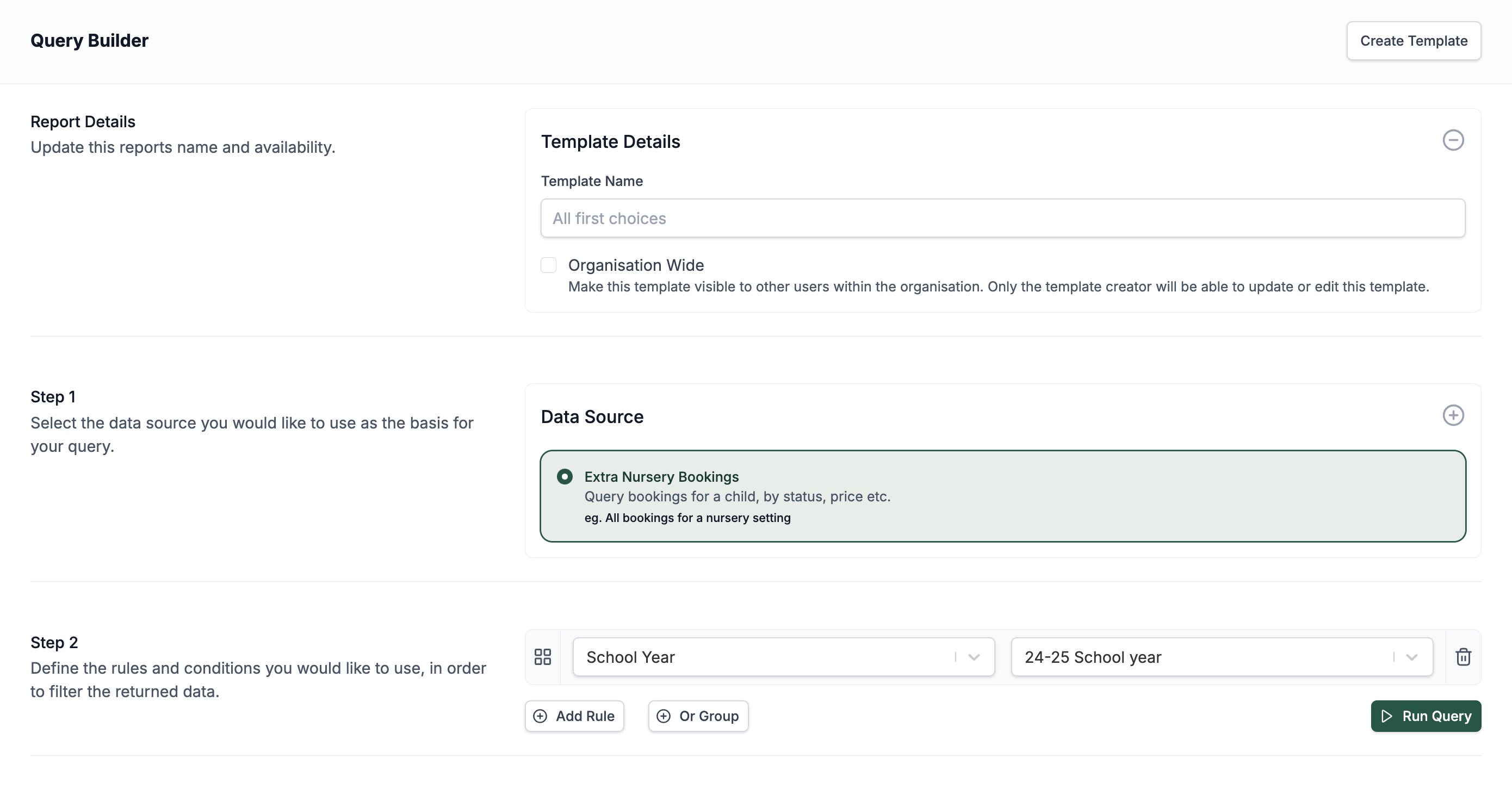
Using the Query Builder for Detailed Reports
To run more advanced reports and extract specific booking information, you can use the Query Builder:
- Go to the Reports section from the main sidebar.
- Click Launch Query Builder in the top navigation.
- Choose Extra Nursery Bookings as your data source.
- Customise your report by applying filters and selecting the relevant data fields.
You can also export the data for offline analysis or record-keeping. If you want to revisit the same report in the future:
- Add a name in Report Details section and click Create Template.
- By selecting Organisation Wide checkbox, you can make this template visible to other users within the organisation. Only the template creator will be able to update or edit this template.