Application Forms
This guide outlines the steps for creating a new application form and customising its questions.
Creating a New Application Form
To begin creating a new application form:
-
Navigate to Settings > Application Forms in the left-hand menu.
-
Click on the "Add Form" button (top right).
-
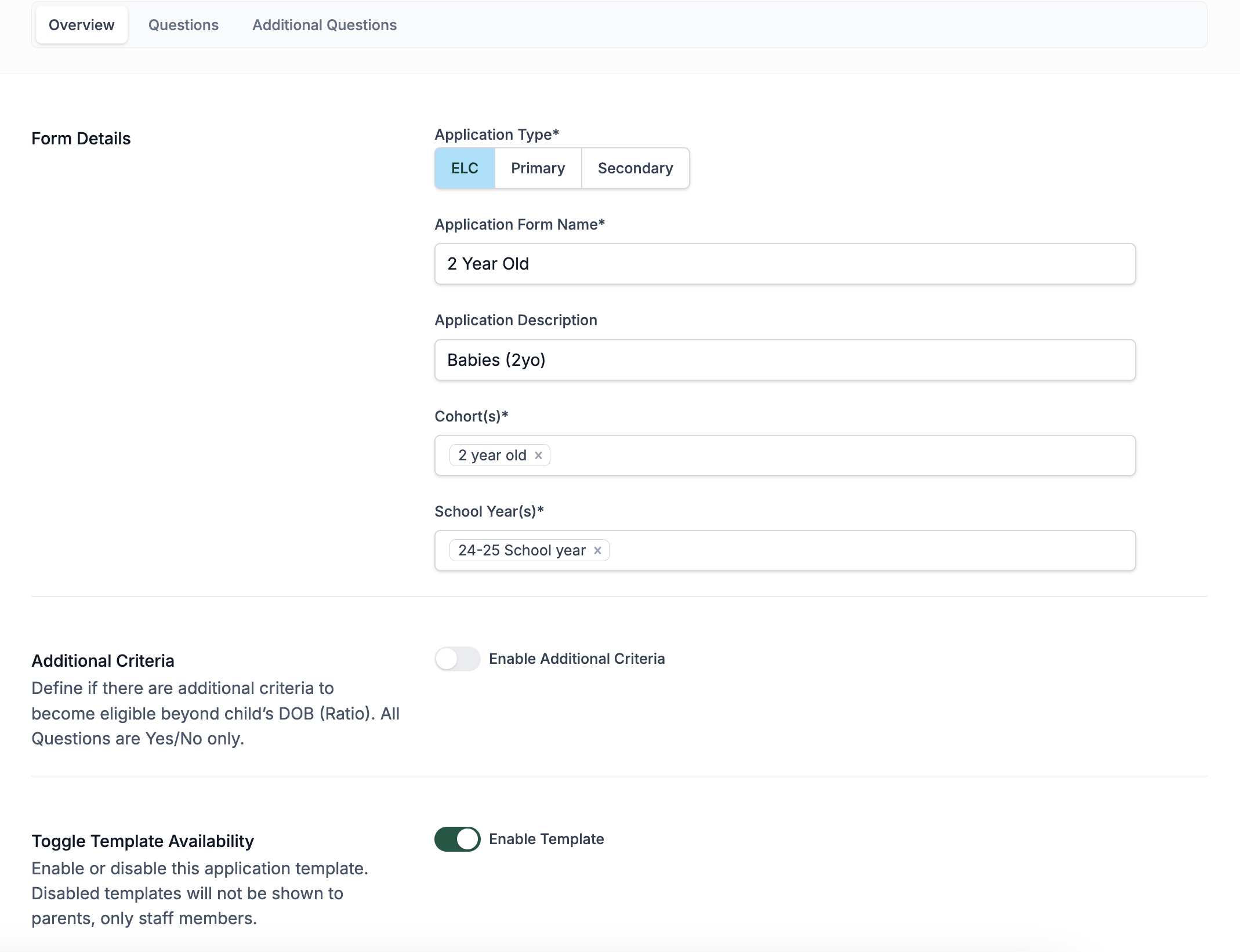
In the New Application Template screen, fill out the following fields:
- Application Type: Choose from
ELC,Primary, orSecondary. - Application Form Name: Provide a title for the form.
- Application Description: Optional description (can be the same as the name).
- Cohort(s): Select applicable cohort(s) (e.g., Secondary).
- School Year(s): Select the relevant school year(s) (e.g.,
PS 24-25 School Year). This field defines what application form is visible for the defined school year.
- Application Type: Choose from
-
Click Create to proceed.
Editing the Form Settings
Application Form consists of three sections that you can navigate between using the tabs at the top of the page.
Overview Tab
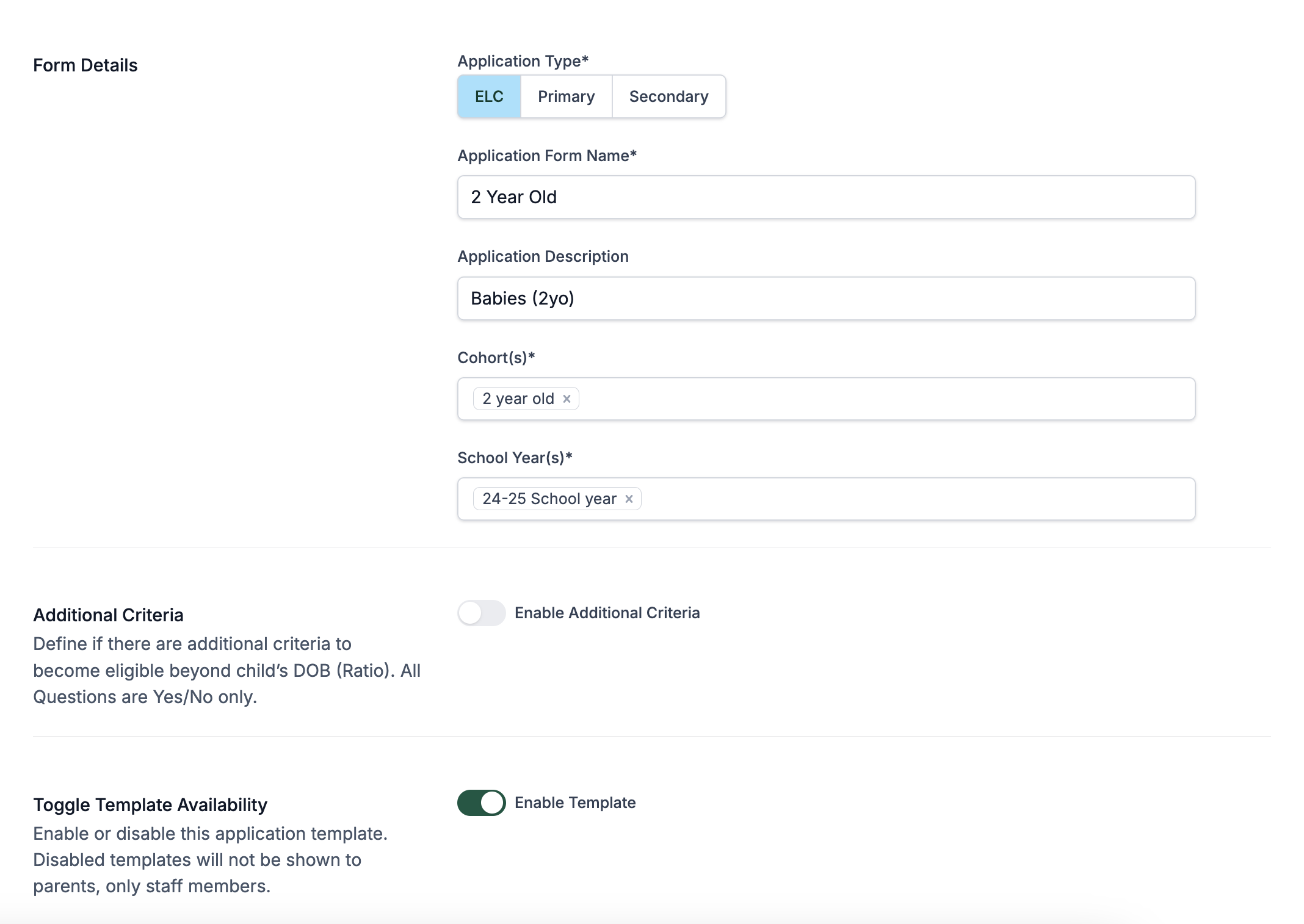
Once the form is created you’ll be taken to the Edit Form screen. Here, you can:
- Update the form name, description, cohorts, or school years.
- Toggle template availability:
- Enable: Makes the form visible to parents.
- Disable: Keeps it hidden from parents (for internal use/testing).
- Optionally enable Additional Criteria, which adds simple Yes/No checks based on eligibility rules like Date of Birth.
Click Update to save changes.
Questions
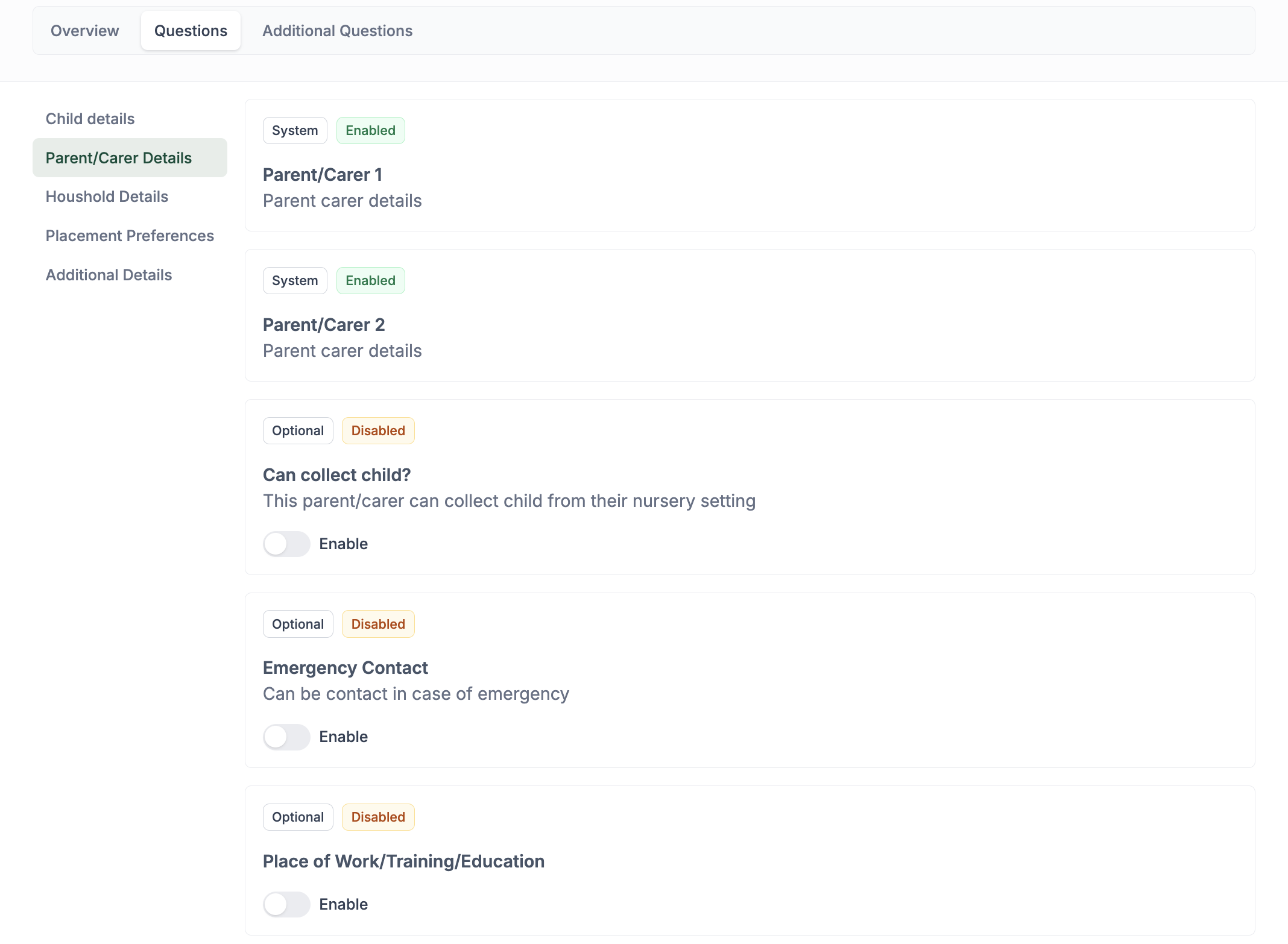
Navigate to the Questions tab to view and configure standard questions included in the form template:
- The system displays grouped sections such as:
- Child details
- Parent/Carer Details
- Household Details
- Placement Preferences
- Additional Details
You can:
- See which questions are System Enabled (required).
- Toggle Optional questions on or off:
- e.g.,
Can collect child?,Emergency Contact,Place of Work/Training/Education.
- e.g.,
Adding Custom Questions
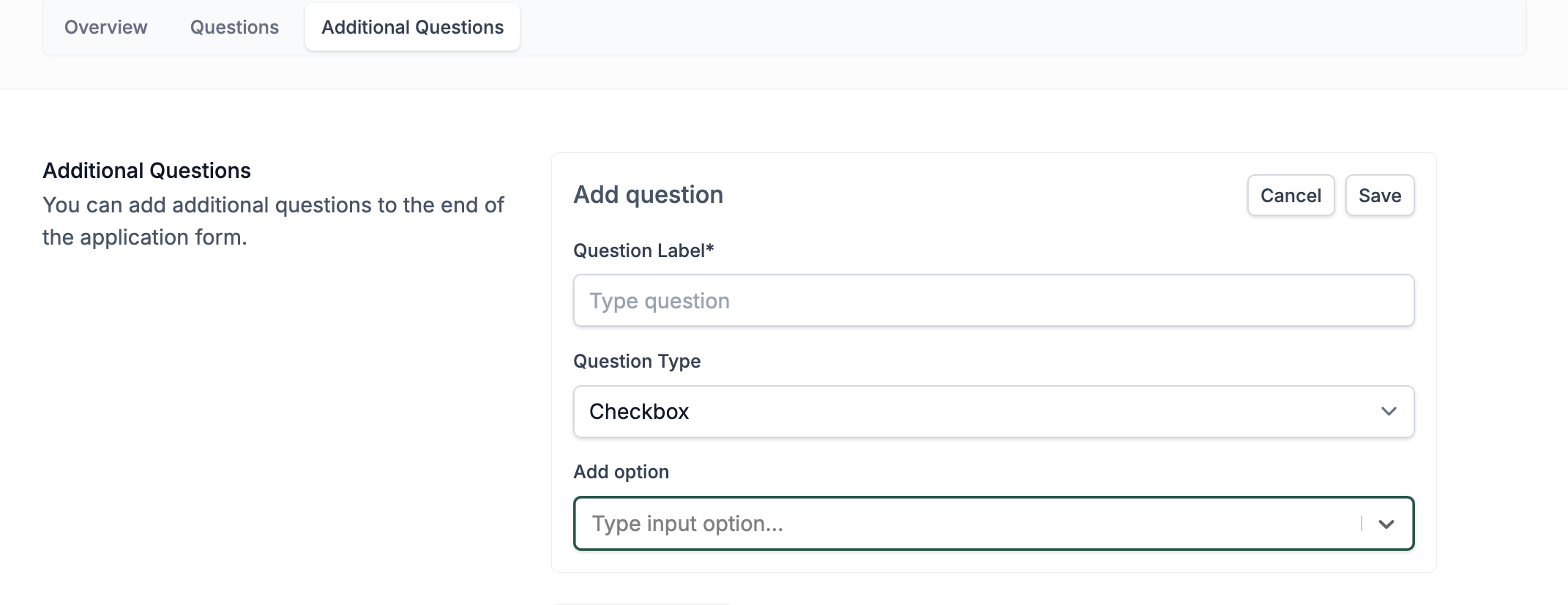
In Additional Questions, you can create tailored queries to suit your local context. Questions will be added to the bottom of the Additional Details section of the application form.
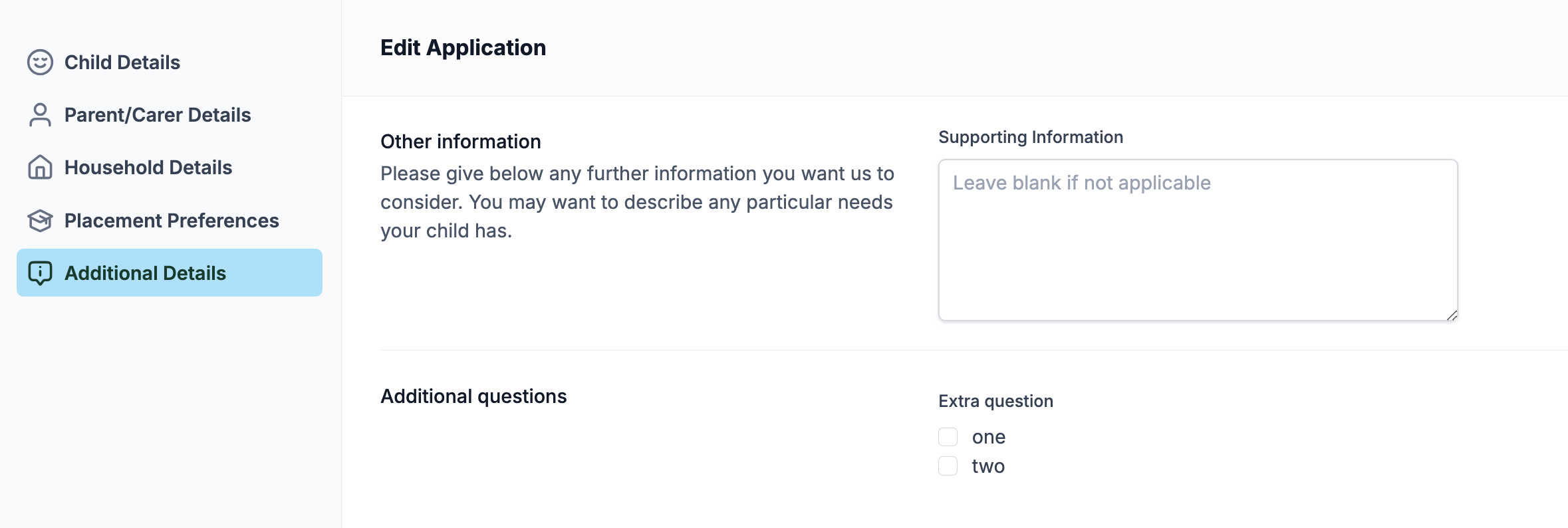
- Enter a Question Label (e.g., “Does the child require transport?”).
- Select a Question Type:
- Select between: Checkbox (multiple choices), Radio (single choice), Paragraph (text area for longer answer), Text input (for typing short answer).
- Click Save to add it to the form.
Repeat for multiple custom questions as needed.